
Interface overview
Find Project Actions, viewport, Dimensions, render controls, status details, object and material panels, and animation controls.
Applies to Tridi Viewer 1.3.0 public beta. Release notes
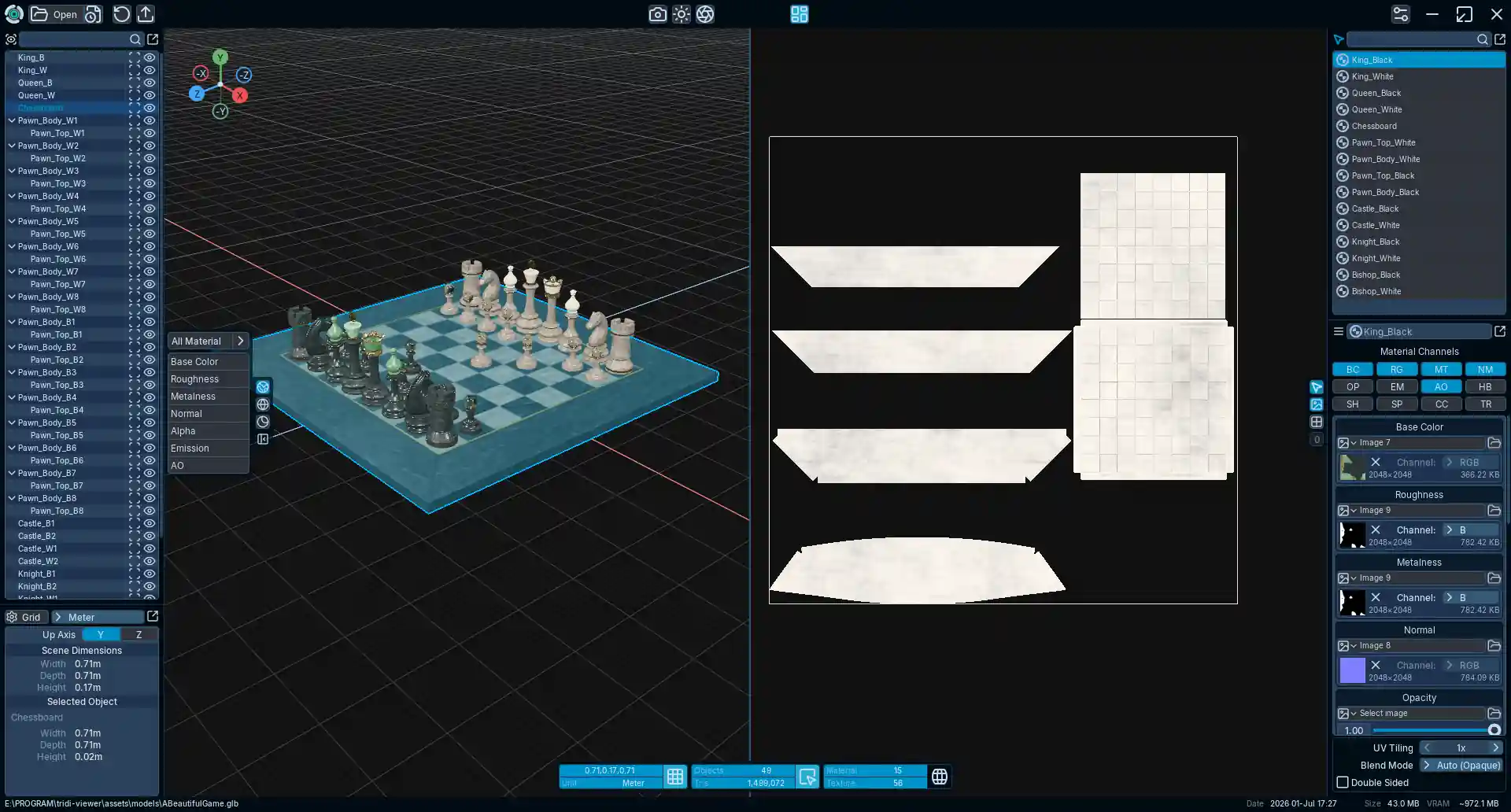
Main areas
- Toolbar
- Open a model or Tridi project, access Project Actions for Reload, Revert, Save, and Save As, save a render image, adjust Environment Settings and Post Processing, export to GLB/glTF/OBJ, toggle UV View, or open Preferences.
- Workspace
- Navigate, select, and inspect the one current model in the 3D View. Enable UV View from the toolbar to inspect UV0 or UV1 beside it for the current session.
- Dimensions
- Review scene and selected-object dimensions, change the display Up Axis, and apply non-destructive Scene Scale presets without rewriting the canonical model.
- Render controls
- Switch between Default Display, Solid Wireframe, Matcap Display, and the configurable render-channel panel. Press Z to toggle Solid Wireframe and C to cycle visible channels.
- Status bar
- Shows file, dimensions, object, triangle, material, and texture information. Dimensions, Objects, Materials, and Material Properties can dock on the left or right with resizable widths or detach into floating panels.
- Playback bar
- Appears when the active model has a supported animation clip.