Inspect UV maps
Inspect UV0 or UV1 beside the 3D view, filter faces by the selected material, and control UV surfaces and wireframe display.
Applies to Tridi Viewer 1.3.0 public beta. Release notes
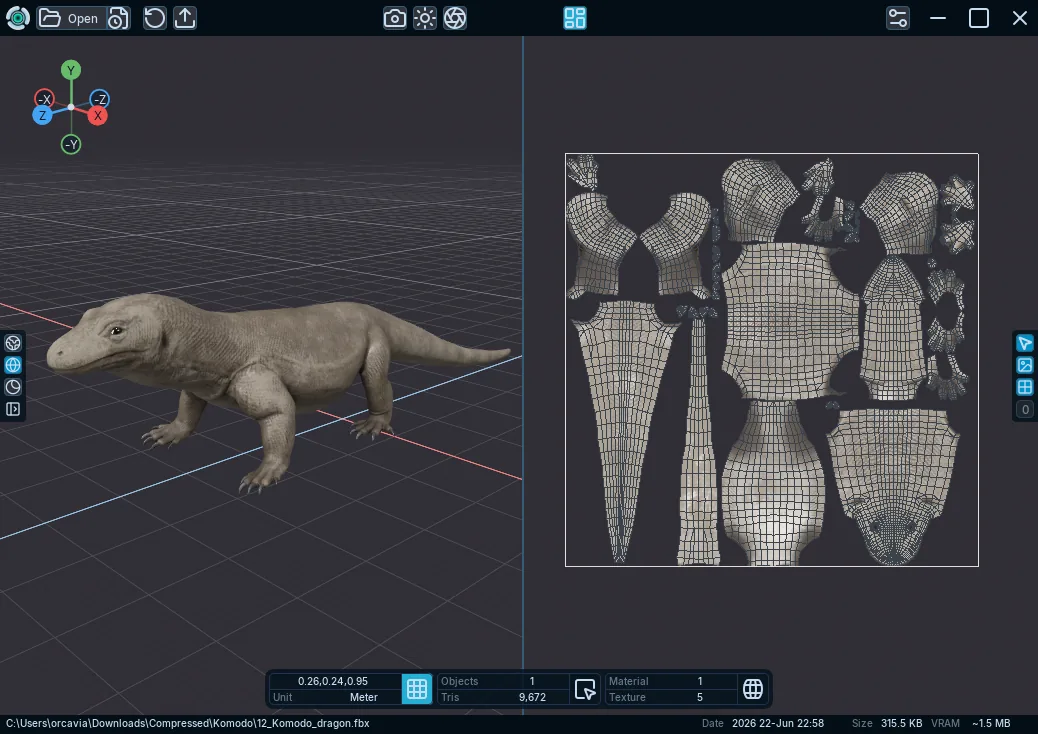
UV View displays the current model's available UV coordinates beside the 3D View without loading a second model.
Open UV View
- Open a model that contains UV0 or UV1 coordinates.
- Select Show UV View in the top toolbar.
- Select a material in the Materials panel or click one of its faces in the 3D or UV view.
- Drag the divider to resize the two views, or double-click it to swap their sides.
Use the UV controls
- Selected Material Only limits the UV display to faces assigned to the current material across all visible objects. Turn it off to show every visible material and highlight the selected material in green.
- Show Surfaces uses effective materials and the active render pass; turn it off for a neutral gray fill.
- Show UV Wireframe draws UV edges above the surface fill.
- UV Map 0 or UV Map 1 switches between UV0 and UV1 when both are available.
Navigate UVs
- Use the mouse wheel or a two-finger pinch to zoom around the pointer position.
- Use middle-drag, right-drag, or a touch drag to pan.
- Move the pointer over UV View and press F to fit the active UV bounds.